Widgets & system
Start and stop timers from widgets and the Lock Screen
Add Timelogger Plus widgets to the Home Screen, Lock Screen and StandBy, and use Live Activities to stop a stopwatch without opening the app.
The fastest way to track time is not to open the app at all.
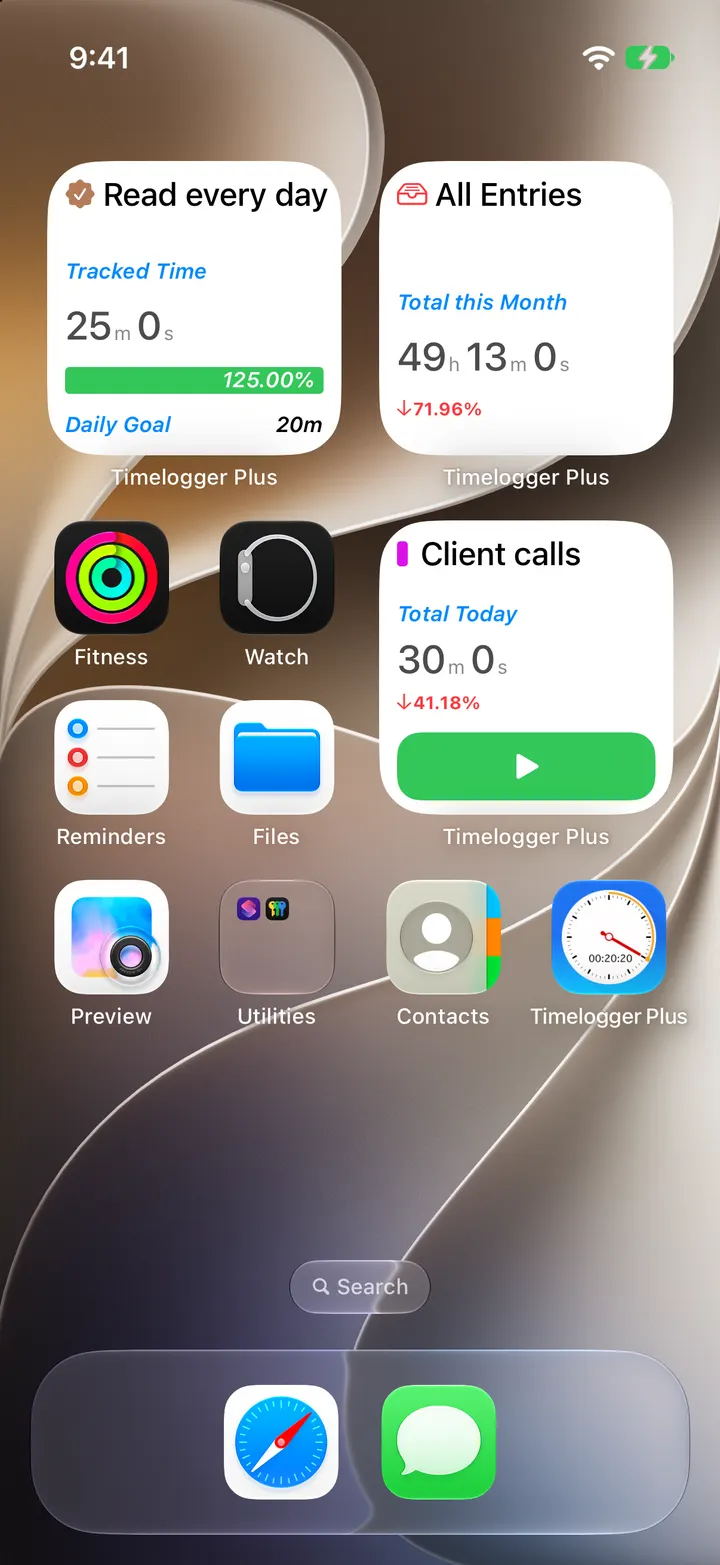
Add a widget to the Home Screen
- Touch and hold an empty area of the Home Screen until the apps jiggle.
- Tap Edit, then Add Widget, and search for Timelogger Plus.
- Choose a widget and a size, then tap Add Widget.
- Touch and hold the widget and choose Edit Widget to pick its task, folder, goal or period.
Some widgets have buttons that start and stop stopwatches right there. Others show a goal’s progress, a total for a period, how today’s time splits across tasks, or your recent entries.
On the Lock Screen and in StandBy
Lock Screen widgets work the same way: touch and hold the Lock Screen, tap Customize, then Lock Screen, and add Timelogger Plus to the widget area. While your iPhone charges on its side, StandBy shows the same widgets large.
Live Activities
When a stopwatch is running, it appears on the Lock Screen and in the Dynamic Island as a Live Activity, with the elapsed time and a stop button.
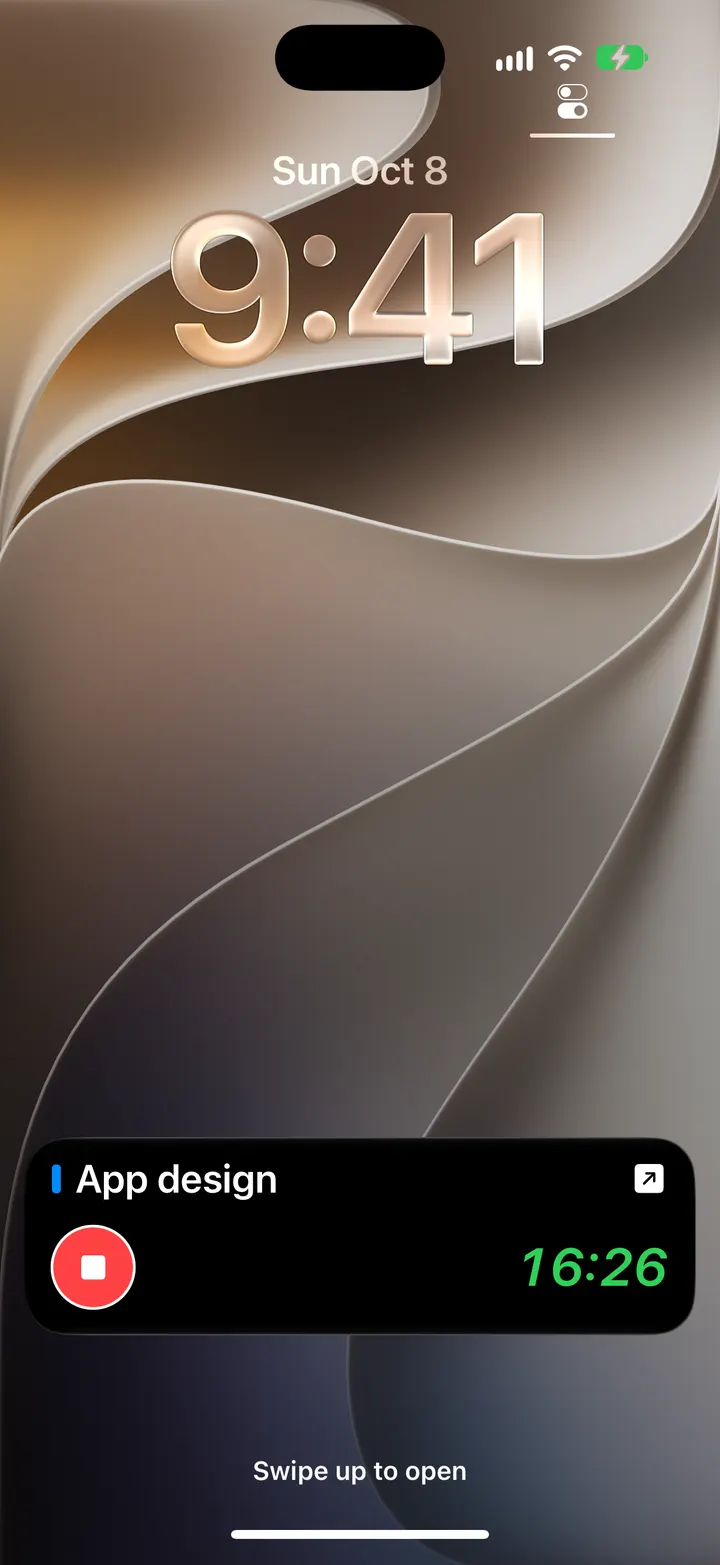
If you don’t see it, check that Live Activities are allowed for Timelogger Plus in Settings → Timelogger Plus.
Written for Timelogger Plus 3.0.2