
Billing
Create a PDF time report for a client
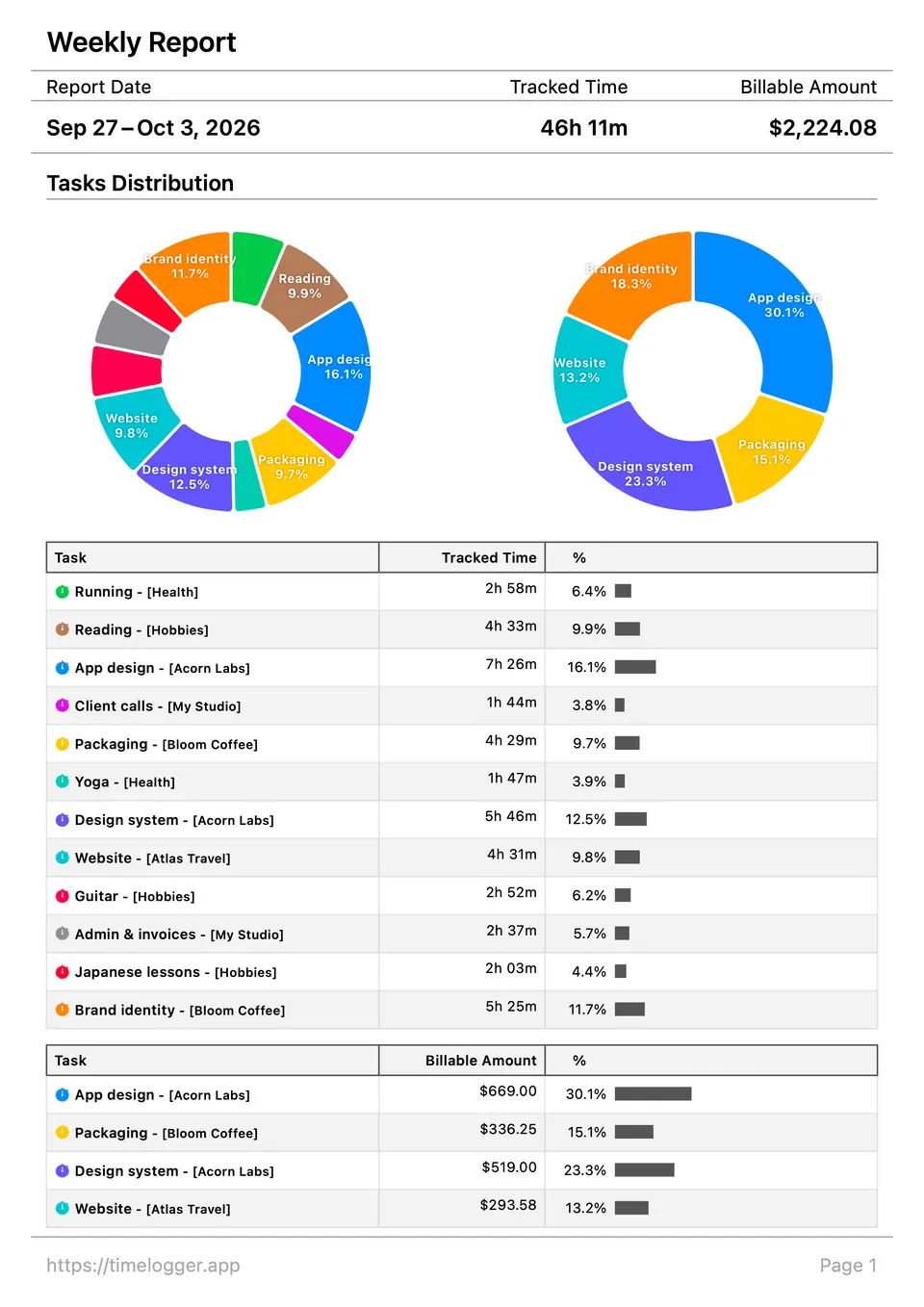
Choose the period and the client, decide what the report shows, and generate a PDF with hours and billable amounts, or a CSV file.
A report shows a client exactly what you worked on and for how long. Timelogger Plus builds it from your entries in a few taps.
Choose what to report
- Open the Dashboard and pick the period: a week, a month, or Custom for any range.
- Filter to the client’s folder, or to a single task.
- Tap Create Report.
Decide what it shows
The report screen groups its options:
- Period: the dates covered.
- Filters: the folders, tasks or tags included. Turn on Include Archived for finished work.
- Billing: turn on Include Billable Amounts to add rates and totals (Premium).
- Entries: list each entry, with the Entry Order you prefer (Newest First or Oldest First).
- Task Summary, Folder Summary and Time Summary: totals by task, by folder and over time, with an optional Bar Chart.
Tap Generate PDF, then share it, save it to Files or print it.
Prefer a spreadsheet?
Export a CSV file instead, with one row per entry, ready for Numbers or Excel or your invoicing tool.
Tip: Set up a Shortcut with Get Report from Period to create last month’s report automatically on the first day of each month.
Written for Timelogger Plus 3.0.2