
Billing
Set hourly rates and see what you've earned
Give a folder or task an hourly rate, mark entries as billable, and watch the billable amount add up on the Dashboard and in reports.
PremiumThis guide uses a Premium feature.
Once a rate is set, Timelogger Plus turns every billable minute into money: on the Dashboard as you work, and in the reports you send.
Set the rate on a folder
A folder is usually one client, so its rate covers every task inside it.
- In Tasks, open the folder’s menu and choose Edit Folder.
- Turn on Billable Events.
- Enter the Hourly Rate, for example 90.
- Tap Save.
Or set it on a single task
A task can have its own rate when one kind of work is priced differently, such as workshops or rush jobs. Open the task, tap Edit, turn on Billable Events and enter its Hourly Rate.
Watch it add up
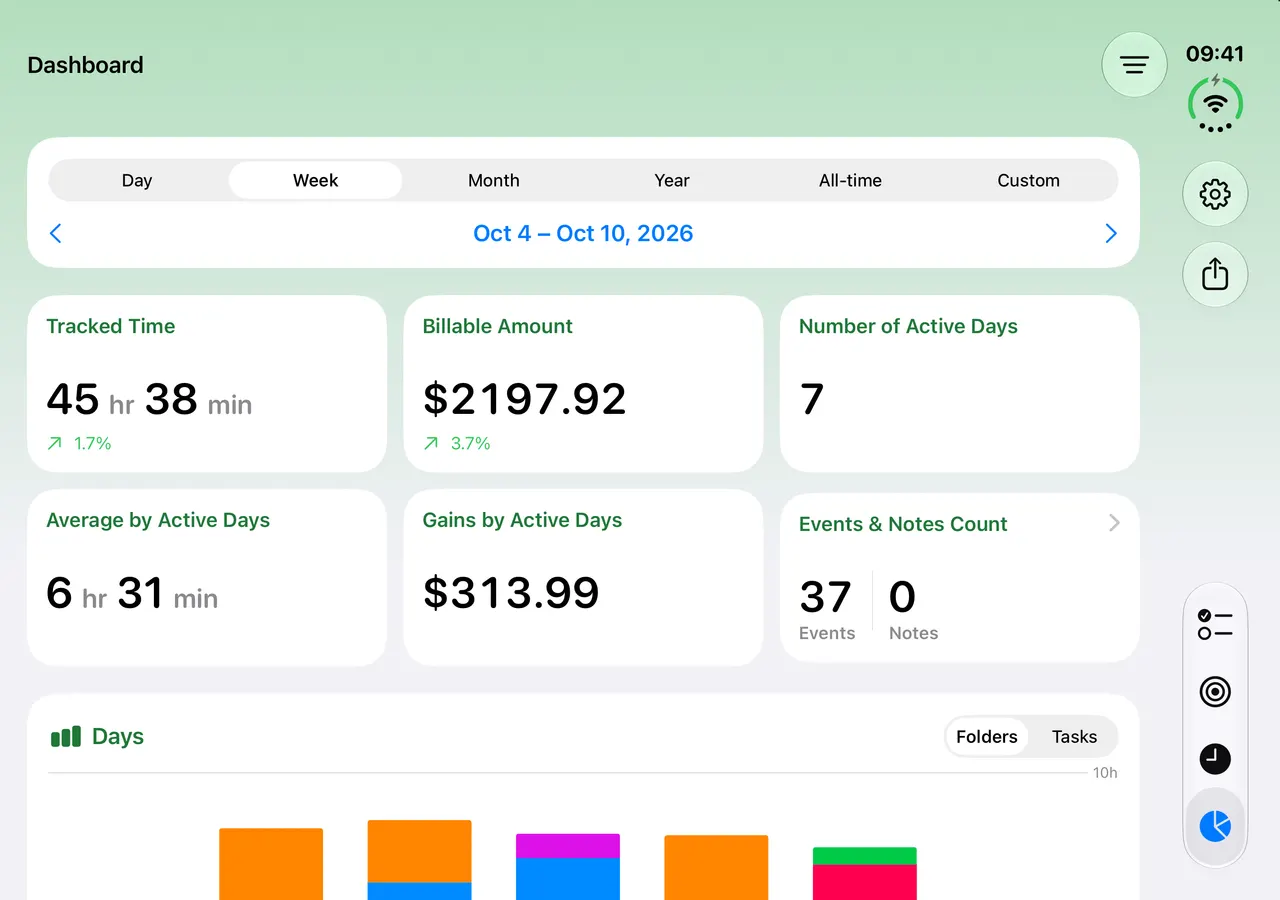
On the Dashboard, the Billable Amount shows what the period’s billable time is worth, and Gains by Active Days shows what you earn on an average working day. Filter by folder to see one client.

Bill a fixed amount
Not every charge is hourly. Add a note to a task and turn on Billable Note to record a fixed Amount, such as a licence or an expense, and it’s included in the billable total.
Tip: Non-billable work still belongs in Timelogger Plus. Admin, sales calls and learning are real hours. Tracking them shows how much of your week you can actually bill, which is the number your rate depends on.
Next: create a PDF report for the client.
Written for Timelogger Plus 3.0.2