Basics
Get started: your first task and stopwatch
Create a task, start and stop its stopwatch, fix a start time you forgot, and see the result in Activity and on the Dashboard.
In five minutes you’ll have a task, a running stopwatch and your first entry on the Dashboard.
Create a task
- Open Tasks and tap + (Add Task).
- Give it a name, such as the project or client you’re working on, and pick a colour.
- If you work for several clients, choose a Folder for it now, or later. Folders keep each client’s tasks together.
- Tap Save.
Start and stop the stopwatch
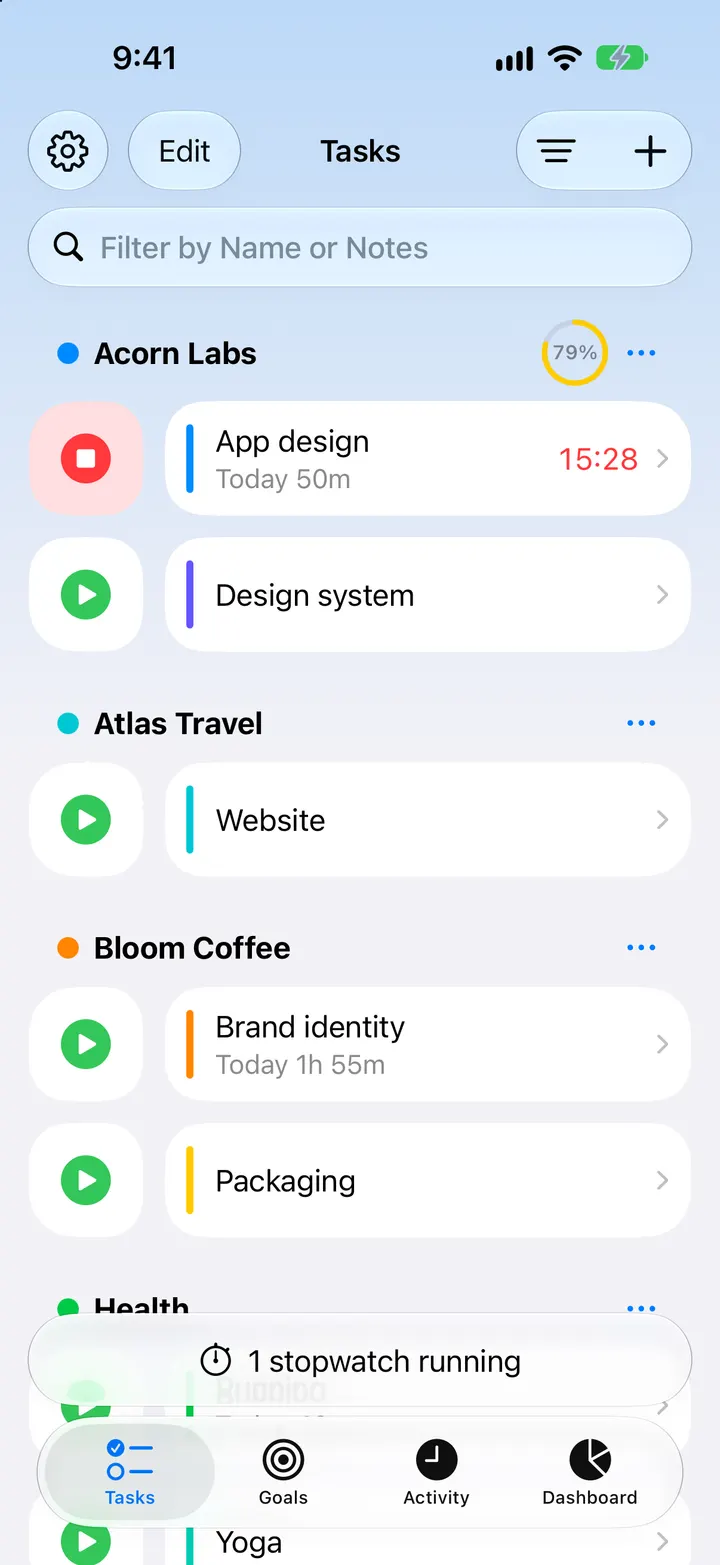
Tap the play button beside the task and the stopwatch starts. Tap the button again to stop it, and the time becomes an entry.
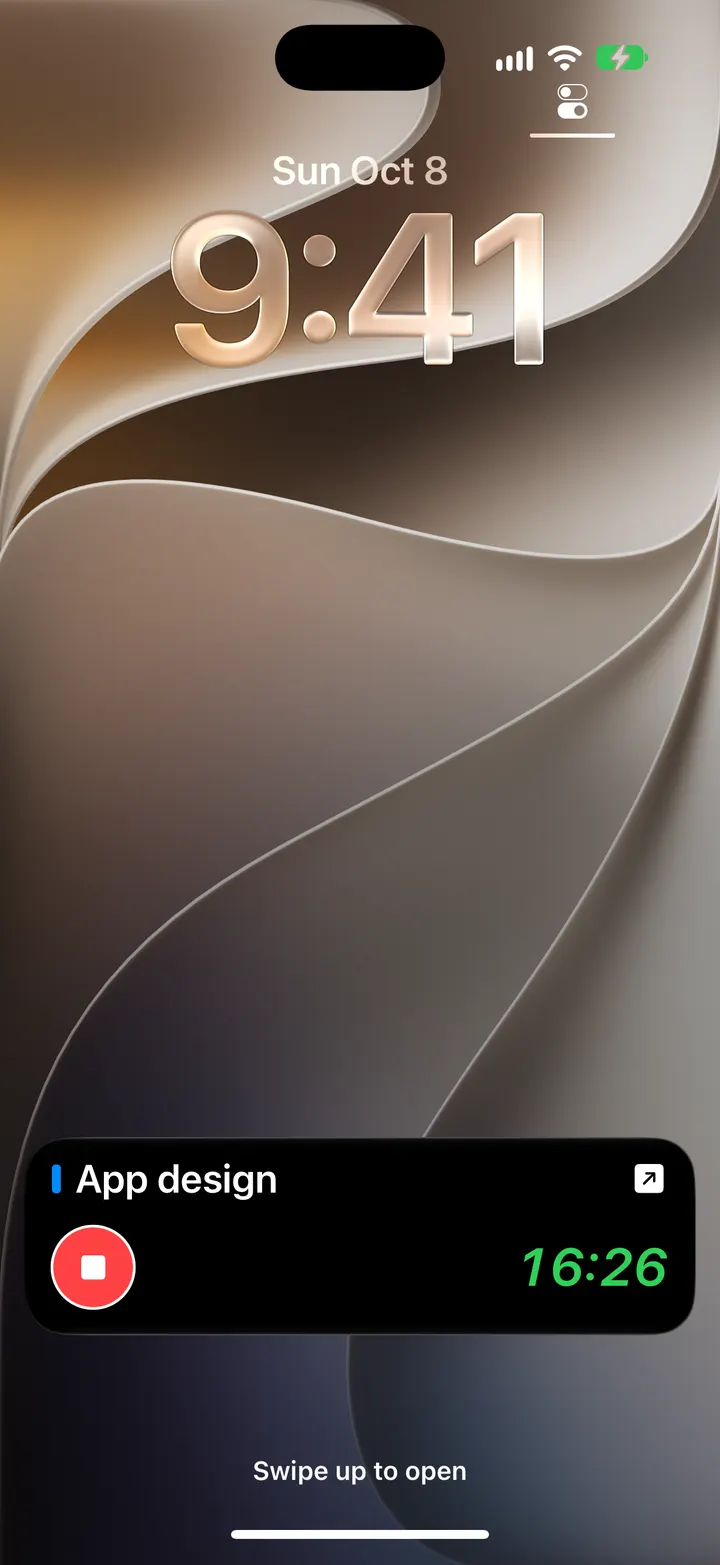
You don’t need to keep the app open. While a stopwatch runs, it also appears on the Lock Screen and in the Dynamic Island as a Live Activity, with a button to stop it.
Forgot to start on time?
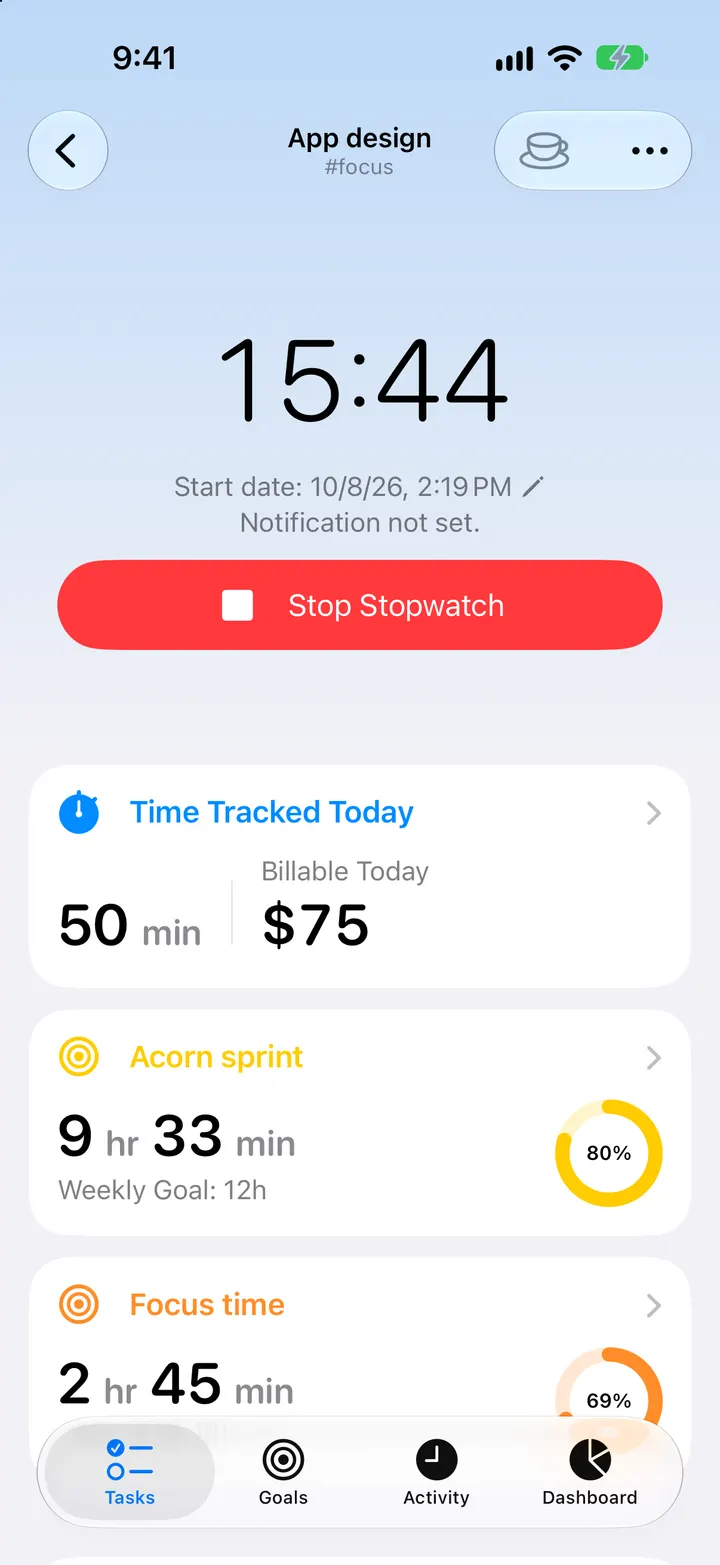
Open the task while its stopwatch runs and tap Edit Stopwatch (the pencil beside the start date) to change when it started. The running time updates straight away. For time you didn’t track at all, add an event with its start and end in Activity.
See where the time went
- Activity lists every entry, newest first. Tap one to change its times, notes or tags.
- Dashboard adds up your time for the day, week, month or any period, and compares it with the period before.
Tip: Run several stopwatches at once, for example a client project and an audiobook. If you’d rather have one at a time, turn on Single Stopwatch in Settings (Premium), and starting a stopwatch stops the other.
Written for Timelogger Plus 3.0.2