Goals
Set daily, weekly and monthly goals
Create a goal for a task, a folder or all your time, choose the days that count, and follow your progress on rings and calendars.
A goal turns time into a habit: half an hour of reading a day, twelve hours a week for a client, sixty hours of study a month.
Create a goal
- Open Goals and tap + to create a New Goal.
- Choose the Type: Daily, Weekly or Monthly.
- Choose what counts: a task, a folder, or all your tracked time.
- Set the duration. Weekly and monthly goals can go beyond 24 hours.
- Tap Save.
Choose which days count
A daily goal can apply to every day or only some of them, so weekends don’t break a weekday habit. Custom weekdays are part of Premium.
Follow your progress
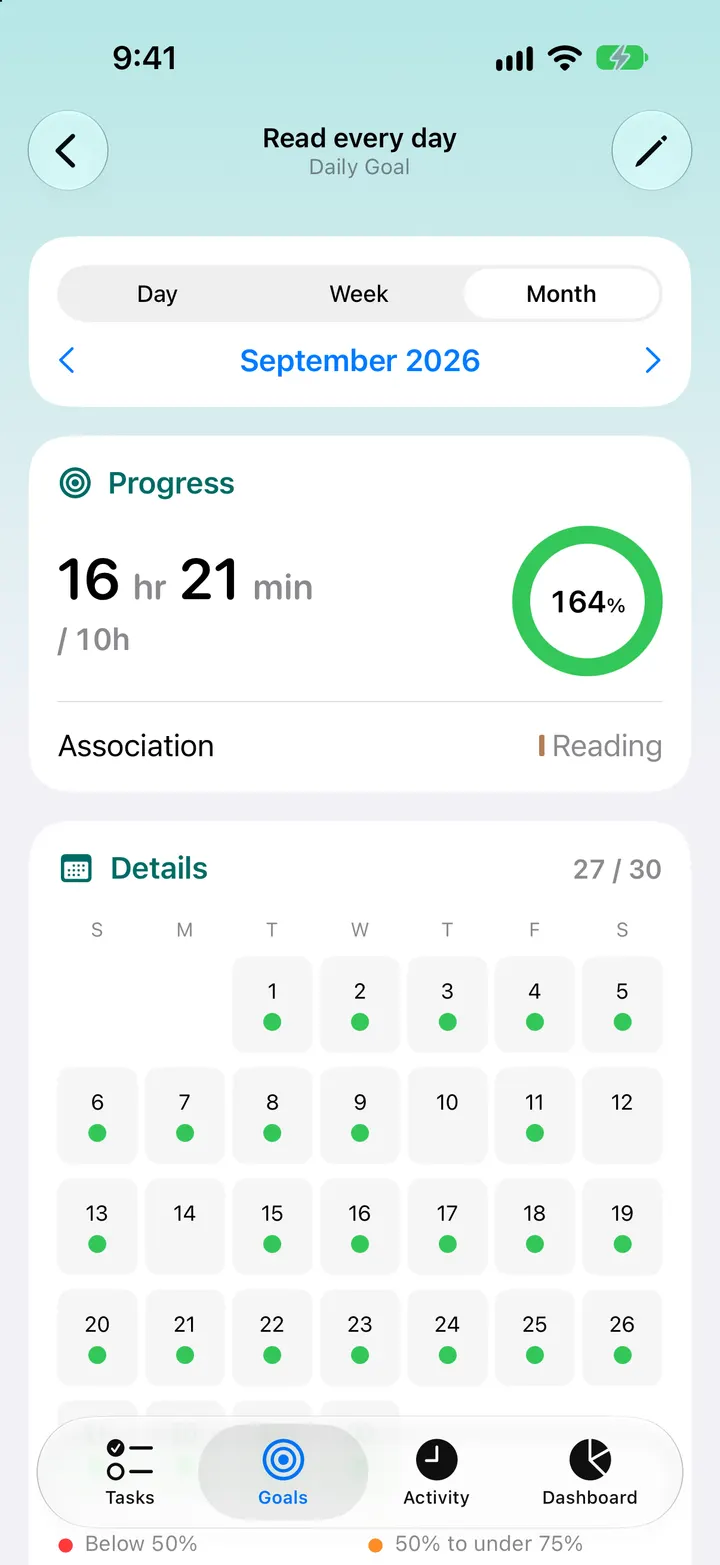
The goal’s ring fills as you track time. Open the goal to see its calendar, with each day, week or month you reached it, and switch between periods to look back.

Tip: Add a goal widget to your Home Screen. Seeing the ring every time you unlock your phone does more for a habit than any reminder.
Written for Timelogger Plus 3.0.2